
A step-by-step beginner tutorial to build your own voice AI assistant using ChatGPT, Whisper, and Make.com.
Imagine speaking a short command into your phone—“summarize this message,” “write an email,” “remind me tomorrow morning,”—and instantly receiving a spoken, intelligent response. That’s exactly what you will learn today. In this beginner-friendly guide, you’ll discover how to build a voice AI assistant using ChatGPT and a few simple, free tools. No coding. No complexity. No expensive software.
Your final assistant will work like this:
➡️ You speak (voice input from Tally form)
➡️ Make.com receives the audio
➡️ Whisper converts it to text
➡️ ChatGPT understands the message and generates a reply
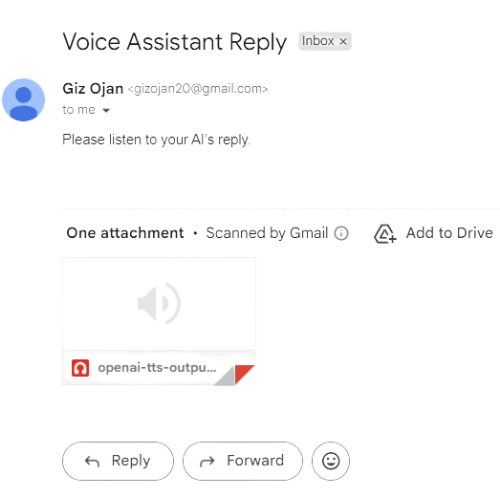
➡️ OpenAI Text-to-Speech transforms the reply into spoken audio
➡️ Gmail sends the assistant’s voice reply back to you
➡️ Google Sheets logs the request for recordkeeping
This article shows you exactly how to set this up—from scratch—using the exact modules, settings, and workflow that work in real life. Whether you’re a beginner, a student, a small business owner, or an AI enthusiast, you’ll be able to build a fully functioning voice assistant in less than an hour.
Let’s begin.
What You’ll Learn in This Guide
By the end of this tutorial, you will be able to:
- Build a voice AI assistant using ChatGPT and Make.com
- Convert voice into text using OpenAI Whisper
- Generate natural replies using ChatGPT Completion
- Convert text into spoken audio using OpenAI TTS
- Trigger the workflow automatically using Tally Forms
- Send outputs via email
- Log activities using Google Sheets
- Troubleshoot common Whisper audio errors
- Understand how voice → text → AI → speech automations work
This is a real practical guide—not theory.
Tools You Need (All Free)
✔ Tally Forms – to upload or record your audio message
✔ Make.com Free Plan – the automation engine
✔ OpenAI Account – for Whisper, ChatGPT, and TTS
✔ Gmail Account – for sending assistant replies
✔ Google Sheets – for logging
✔ Any phone/laptop – to record your voice
Everything is beginner-friendly and requires no technical background.
For more recommended AI platforms and beginner-friendly tools, explore the complete list of AI tools we recommend at OneDu.
STEP-BY-STEP: Build a Voice AI Assistant Using ChatGPT
Below is the exact workflow you will see in your scenario, if properly done:
Tally → HTTP (Get a File) → Whisper → ChatGPT → OpenAI TTS → Gmail → Google Sheets
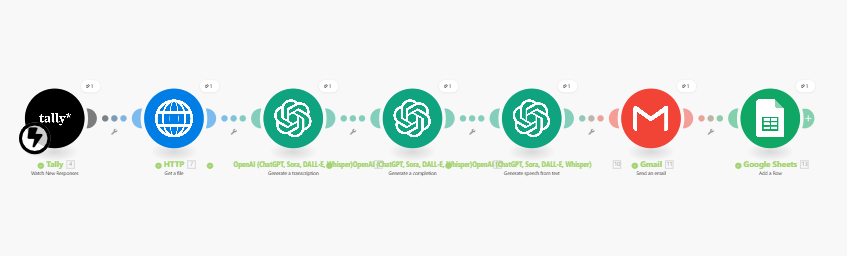
We will now break this into very clear steps that anyone can replicate.
STEP 1: Create a Tally Form to Receive Voice Input
Tally is the trigger for your voice assistant. To collect voice recordings and start the automation, we use Tally, a simple and beginner-friendly online form builder.
You can create your free Tally form here.
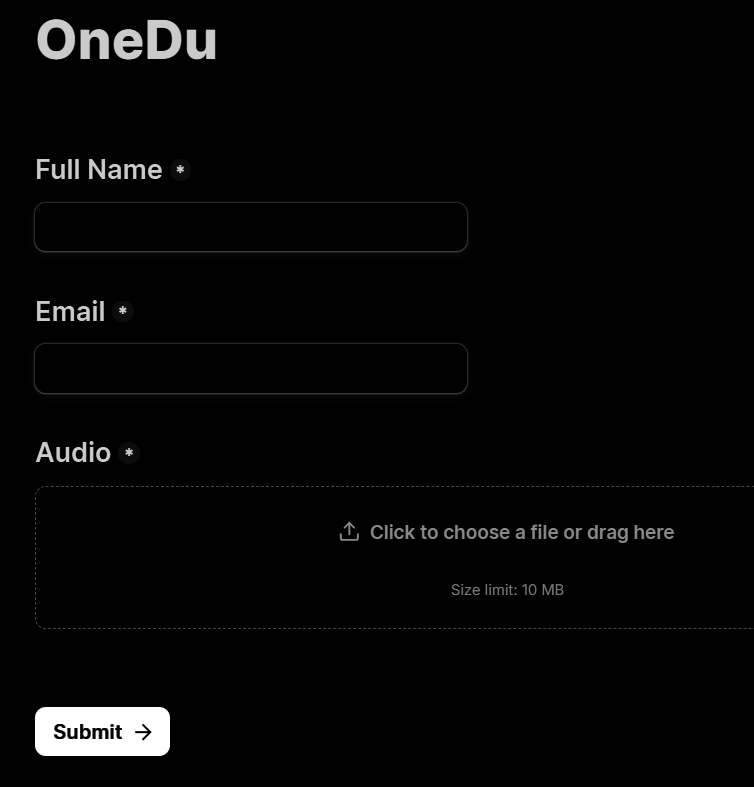
✔ What the Tally form should contain:
- Full Name for record purposes
- Email field to send the response back
- A file upload field
- Optional notes or file description field
✔ Steps to create your form:
- Go to https://tally.so
- Create a new form
- Add a question:
“Upload your voice message (audio only)” → Choose File Upload - Allow formats: mp3, wav
- Add another field:
“Your email address for the AI reply” - Publish the form
- Copy the form URL
STEP 2: Add Tally as the Trigger in Make.com
- Go to Make.com
- Click Create a New Scenario
- Search for Tally
- Select Watch New Responses
This module will fire every time someone uploads a voice file.
You can explore more automations and templates on the official Make.com automation platform.
Important:
The file Tally sends is a URL, not an audio file.
We will fix this in the next step.
To explore more practical automation tutorials, you can check out our guide on how to automate tasks using Make.com.
STEP 3: Use the HTTP Module to Download the Audio File
Whisper cannot read file URLs.
Whisper needs the actual binary file.
Steps:
- Add a module → search HTTP
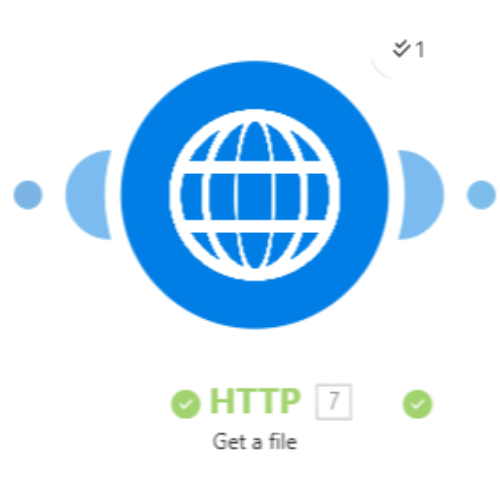
- Select Get a File
- In the URL field, map:
Tally → Payload → File URL (this is usually found under “Answers”) - Save
The HTTP module will produce:
- File content (binary) – EXACTLY what Whisper needs
- File name
- MIME type
If you’re new to automation, you may also want to see our previous guide on automating daily tasks using Make.com, where we break down simple workflows you can set up in a few minutes.
STEP 4: Convert Audio to Text with Whisper
Generate a Transcription
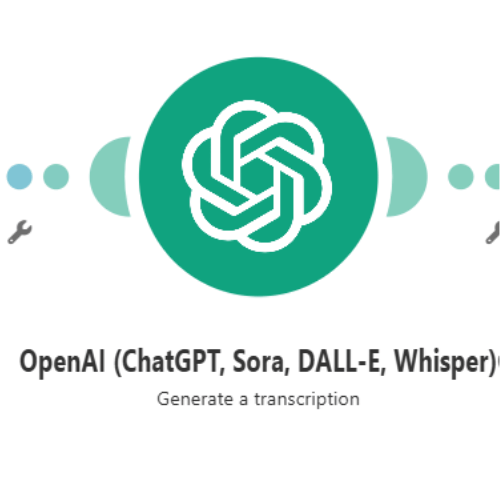
- Add module → search OpenAI
- Select Generate a Transcription
- Set Model:
whisper-1 - File Data → map from HTTP → Data
- File Name → map from HTTP → Filename
- Output format: text
When this runs:
- Your voice becomes text
- Whisper handles accents very well
- You get a clean, accurate transcription
To learn more about how Whisper processes audio, you can visit the official Whisper Speech-to-Text documentation.
Troubleshooting Whisper Errors (Common Fixes for Beginners)
When you build a voice AI assistant using ChatGPT, the Whisper transcription step is usually smooth — but beginners sometimes encounter errors. Here are the most common issues and how to fix them.
❌ Error: “Invalid file format”
Cause:
You mapped a URL instead of a binary audio file.
Fix:
- Add HTTP → Get a File before Whisper
- Map Data (binary content) to Whisper’s “File Data”
- Map Filename to “File Name”
❌ Error: “The input file is empty or unreadable”
Cause:
The audio recording was corrupted or too short.
Fix:
- Ensure audio is 1 second+
- Record in WAV, MP3, etc
- Avoid background noise
❌ Error: “Base64 string detected”
Cause:
Your device sent audio as Base64.
Fix:
Insert a module: Tools → Base64 → Decode
Then map decoded output into Whisper.
❌ Error: “Missing file content”
Cause:
Trigger (Tally or webhook) didn’t send the actual file.
Fix:
Test the trigger using Run Once and confirm it shows:
- Data
- Filename
- MIME type
❌ Error: “Unsupported format”
Fix:
Use: mp3, wav, mp4, ogg, webm, flac.
STEP 5: Send the Transcribed Text to ChatGPT
Generate a Completion
For your assistant to understand what you said, add another module – OpenAI and select Generate a completion
Configure:
- Model:
gpt-4o-mini(recommended) or any other model of your choice - Role: System Prompt
- Paste the prompt below:
You are a friendly voice AI assistant. Understand the user’s request and respond clearly in simple English. Keep answers short, helpful, and accurate.
User Input:
Map:
Whisper → Transcription Text
This is where you actually build a voice AI assistant using ChatGPT—the key part of this tutorial.
If you’d like to build more intelligent assistants beyond voice automation, you can also learn how to build chatbots and conversational AI assistants.
ChatGPT will now generate the perfect reply.
To deepen your understanding of how AI generates natural and helpful responses, you can read our beginner-friendly tutorial on building assistant/chatbots with ChatGPT, which covers conversation flow, message structuring, and prompt design.
STEP 6: Convert ChatGPT’s Reply to Voice (Text-to-Speech)
Generate Speech From Text
Here, we add another OpenAI module to convert our reply, in text format, to audio. In the module, select generate speech from text.
Configure:
- Model:
gpt-4o-mini-tts - Voice: alloy (natural and clear)
- Input Text: Map ChatGPT response
Output will be in MP3, ready to send.
STEP 7: Send the Voice Reply via Gmail
Gmail Module – Send Email
Configure:
- To: Map from Tally email field
- Subject:
"Your Voice Assistant Reply" - Body:
"Please find your AI voice response attached." - Attach file: Map from OpenAI TTS → mp3 file output (from step 6)
Your assistant will now automatically send a spoken/audio reply.
STEP 8: Log Everything in Google Sheets
Google Sheets – Add Row
At this stage, you should add the final module – Google Sheets and select Add a row. This will help keep a record of all the interactions the voice AI assistant has had.
Suggested columns:
| Column | Value |
|---|---|
| Timestamp | now() |
| Tally email | |
| Transcription | Whisper output |
| AI Response | ChatGPT completion |
| Audio Link | TTS output URL |
This gives you a complete history of voice commands.
Practical Use Cases for Your Voice AI Assistant
Your new automation is not just a fun experiment — it can become a real productivity booster. When you build a voice AI assistant using ChatGPT, you unlock dozens of practical ways to use it in your daily life, studies, creative work, or business operations. Here are a few simple but powerful examples:
✔ 1. Personal Productivity
- Create daily reminders
- Draft quick notes using your voice
- Summarize long messages
- Generate short to-do lists
- Ask for quick explanations or instructions
✔ 2. Business and Professional Workflows
- Draft professional email replies
- Respond to customer inquiries automatically
- Create short scripts, descriptions, or briefs
- Log voice inputs into Google Sheets for tracking
- Generate meeting summaries or follow-up text
✔ 3. Education and Learning
- Turn textbook paragraphs into simple explanations
- Create audio flashcards
- Produce quick study notes
- Ask the assistant to explain concepts in plain English
✔ 4. Content Creation
- Generate caption ideas
- Brainstorm video topics
- Summarize articles for research
- Draft outlines faster
✔ 5. Personal Life Support
- Create grocery lists
- Set simple reminders
- Ask for recipe steps
- Get motivational notes read to you
These use cases show how powerful it is to build a voice AI assistant using ChatGPT — it becomes your personal helper that listens, understands, responds, and stays available anytime you need it.
Best Practices for Building a Reliable Voice AI Assistant
To get the best results when you build a voice AI assistant using ChatGPT, follow these simple best-practice guidelines:
✔ Keep voice recordings clear
Speak slowly, pause between sentences, and record in a quiet place.
✔ Use consistent system prompts
A strong system prompt helps ChatGPT maintain tone and reliability.
✔ Test each module individually
If something breaks, testing one module at a time makes troubleshooting effortless.
✔ Keep responses short and useful
Short replies reduce processing time and make the system feel more responsive.
✔ Store logs in Google Sheets
Keeping records helps track usage and debugging.
✔ Regularly update your Make.com scenario
OpenAI often adds improvements — using the latest versions helps maintain accuracy.
What to Avoid When Building Your Voice AI Assistant
To keep your automation stable and avoid unnecessary errors, avoid the following:
❌ Avoid uploading unsupported audio formats
Stick to mp3, wav, webm, etc.
❌ Avoid sending links instead of real audio files to Whisper
Always download the file using HTTP → Get a File.
❌ Avoid overly long or complicated voice commands
Short, clear voice inputs produce better results.
❌ Avoid allowing the assistant to make sensitive decisions
Always review outputs involving finance, health, or personal data.
❌ Avoid complex automation before mastering basic flows
Start simple — then expand.
Frequently Asked Questions
1. Can I customize the assistant’s voice or choose a different tone?
Yes. OpenAI’s TTS lets you pick different voices and adjust the tone by tweaking your prompts.
2. Is Whisper free to use?
Whisper is extremely affordable, and many users stay within free credit limits.
3. Can the voice assistant respond in different languages?
Yes. Whisper detects multiple languages automatically, and ChatGPT can respond in any.
4. Can I trigger actions instead of receiving a reply?
Yes. You can automate reminders, tasks, emails, calendar events, or even database updates.
5. Can I replace Gmail with WhatsApp or Telegram?
Absolutely. Make.com supports WhatsApp Cloud API, Telegram Bot, Messenger, Slack, and more.
6. What happens if my workflow stops running or Make.com shows an error?
Check Make.com’s error log and run the scenario step-by-step using “Run Once.” Most issues come from wrong mappings or unsupported audio formats.
Conclusion
Congratulations! You have now learned how to build a voice AI assistant using ChatGPT and a simple no-code workflow inside Make.com. With just a Tally form, Whisper transcription, ChatGPT thinking, and a natural voice reply through OpenAI’s Text-to-Speech, you’ve built a working assistant that acts like a mini Siri or Google Assistant—completely customized to your needs.
What makes this exciting is how easily you can extend it. Today, your assistant can summarize messages or generate email replies. Tomorrow, you can make scheduled appointments, create notes in Google Docs, or respond over WhatsApp. The possibilities grow as you explore.
AI should not be complicated. And now you’ve proven that anyone can create a helpful, intelligent voice assistant with clear steps and free tools. Keep experimenting, keep improving—and soon you’ll have an assistant that truly feels like your second brain.
CALL TO ACTION
🎧 Download the Voice AI Assistant Blueprint
Get the complete presentation blueprint that walks you step-by-step through creating your no-code voice AI assistant using ChatGPT, Whisper, Make.com, and Tally — including workflow maps, module settings, and troubleshooting tips.
Download Blueprint (PPTX)
Good morning, my AI agent. I’m deeply interested in AI voice technology and its uses. How does it work? Can it be utilized in a conference meeting?
Send us a message using the contact form at https://onedu.online/contact
Good morning, my AI agent. I’m deeply interested in AI voice technology and its uses. How does it work? Can it be utilized in a conference meeting? So, please let me know as soon as possible.
Send us a message using the contact form at https://onedu.online/contact
Pingback: How To Build An Effective Generative AI Content Engine With Make.com (7 Steps)