
Modern customers expect quick, helpful, and friendly support—even outside working hours. But hiring extra staff or managing repeated emails manually isn’t always practical for small businesses, freelancers, or growing teams. What if you could automate the first step in your support process—without writing a single line of code? That’s where the no-code customer support assistant comes to play.
That’s exactly what this guide gives you.
In this article, you’ll build a form-based customer support assistant using Google Forms, Make.com, and ChatGPT. Instead of a live chat widget, customers will submit their questions through a simple form. Your AI assistant will process the question, generate a clear response from your FAQs, and send an email reply instantly. If the question cannot be answered, the automation forwards it to your support team for follow-up.
If you’re completely new to automation, start with our beginner guide on automating daily tasks with Make.com and ChatGPT. It shows you how simple no-code workflows can be.
This approach is perfect for beginners because it removes the complexity of chat widgets and APIs, while still giving you a working no-code support system powered by AI.
By the end of this guide, you’ll have a smart email-based support assistant that:
- Answers common questions automatically
- Uses your FAQ as its knowledge base
- Sends replies directly to the customer’s email
- Escalates unknown questions to your team
- Runs 24/7 without human monitoring
What This Guide Covers (Quick Summary)
- How to build a no-code customer support assistant using ChatGPT + Make.com
- How to automate replies to customer questions using Google Forms
- How to route unknown or complex questions to your support team
- How to prepare your FAQ, flows, privacy, and support assistant logic
- Screenshots, templates, and a downloadable workflow PDF
Let’s begin.
What You’ll Learn
- How to design a simple AI-assisted support flow
- How to capture customer questions using Google Forms
- How to connect Make.com and ChatGPT to generate answers
- How to route messages based on whether answers exist
- How to send automatic replies or escalate to your support inbox
- How to keep everything private, safe, and beginner-friendly
What You Need Before You Start
Before building your no-code support assistant, you’ll need the following:
- A Google Form: This will act as the “chat window” for this beginner-friendly version of your assistant.
- A Make.com Account: The free plan works well for this tutorial.
- ChatGPT API or a ChatGPT Plus account: You’ll use ChatGPT inside Make.com to generate responses.
- A Gmail or Outlook Account: This is needed to deliver the AI-generated reply to customers or escalate messages to your team.
- A Basic FAQ List: This can be stored in a text file or document. Your assistant will use it to automatically answer questions.
You don’t need any coding experience—just a clear understanding of the questions your customers commonly ask.
You can find all the tools used in this tutorial on our AI Tools & Resources page.
Step 1: Define Your ASSISTANT’s Goals and Intents
Before building anything, take a moment to outline what this assistant should do.
If you are a beginner, you can learn more about building a chatbot/assistant, the PenteScope case study.
Ask yourself:
What should this assistant handle automatically?
Most businesses start with 5–10 questions that appear repeatedly. Examples include:
- “What are your delivery times?”
- “How do I track my order?”
- “How do I reset my password?”
- “Do you offer refunds?”
- “Where are you located?”
Next, identify intents, which are categories of customer questions:
- Delivery and shipping
- Billing or payments
- Returns and refunds
- Account support
- General inquiries
These help you structure your FAQ so ChatGPT answers accurately.
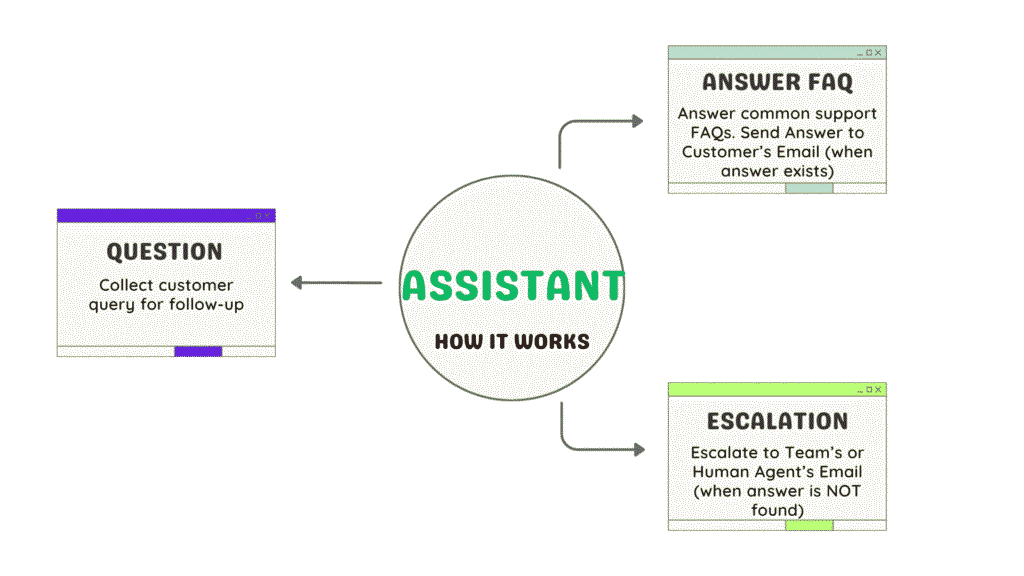
How the Assistant Works
- Collect customer queries for follow-up
- Answer common support questions that are on file
- Escalate technical or billing issues to a human agent
Step 2: Prepare Your FAQ or Knowledge Base
Your AI assistant can only answer questions based on the information you provide.
So now, prepare your FAQ in a structured format.
Example FAQ Table
| Question | Short Answer |
|---|---|
| “What’s your delivery time?” | “Most orders arrive in 2–3 business days.” |
| “Can I return an item?” | “Yes, within 30 days with your receipt.” |
Keep answers:
- short
- friendly
- clear
- easy to understand
Your goal is to provide ChatGPT with high-quality information so it generates accurate responses.
Step 3: Create Your Support Form Using Google Forms
Your form will act as the user interface for this version of the support assistant. If you’d like to customize your form or explore more features, the official Google Forms Help Center provides clear documentation for beginners.
Google Form Fields to Add
- Full Name (Short Answer)
- Email Address (Short Answer, Required)
- Your Question (Paragraph)
Once created, this form can be:
- embedded on your website
- linked from your contact page
- used internally for client queries
- shared on social platforms
This gives customers a simple and accessible way to submit questions.

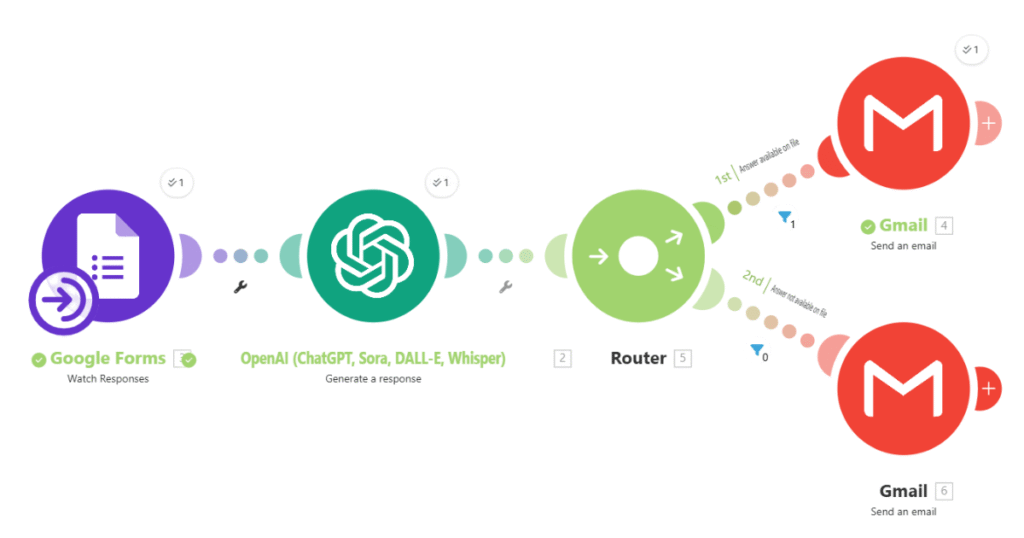
Step 4: Build the Automation in Make.com
Now, let’s create the actual workflow automation. If you’re new to Make.com, you can explore more details in the official Make.com documentation, which explains how triggers, modules, and routers work behind the scenes.
✔ Step 4.1 — Create a New Scenario
Open Make.com → Click Create Scenario
✔ Step 4.2 — Add Google Forms as the Trigger
Google Forms → Watch Responses
Select your form.
This simple trigger works well for beginners because it removes the technical setup required for chat widgets or APIs, while still giving you a functional assistant.
This means every new form submission triggers the workflow. This allows the assistant to respond to customers instantly without requiring a live chat widget or custom backend.
Step 5: Process the Question with ChatGPT in Make.com
Next, add the OpenAI (ChatGPT) module. You can learn more about ChatGPT’s capabilities and parameters in the official OpenAI API documentation, which explains how AI processes and generates responses.
✔ Configure the module
In the “Prompt” field, paste something like:
You are a helpful customer support assistant.

Using only the information provided in the FAQ below, answer the customer’s question clearly and briefly.

If the question is NOT covered in the FAQ, reply with exactly: NOT_FOUND
Do NOT guess. Do NOT create answers. Only reply if the FAQ contains the information.

FAQ:
[List of FAQs Questions]

Customer question:
{{Question}}

Return only the answer text.
If answer not found, return ONLY: NOT_FOUND
Do not use markdown, bullets, or special characters.
This “NOT_FOUND” rule is what enables accurate routing later. It prevents ChatGPT from guessing or inventing answers. This ensures your AI assistant produces clear, reliable answers and does not hallucinate beyond the FAQ.
Step 6: Add Routing Logic (Answer vs. Escalation) & EMAIL MODULE
This is where your automation becomes smart.
After the ChatGPT module, add a Router with two branches:
Route 1: Send Answer to Customer (when answer exists)
Create a filter:
Route 1 filter: ChatGPT output ≠ “NOT_FOUND”If true → send an email to the customer with the AI-generated answer.
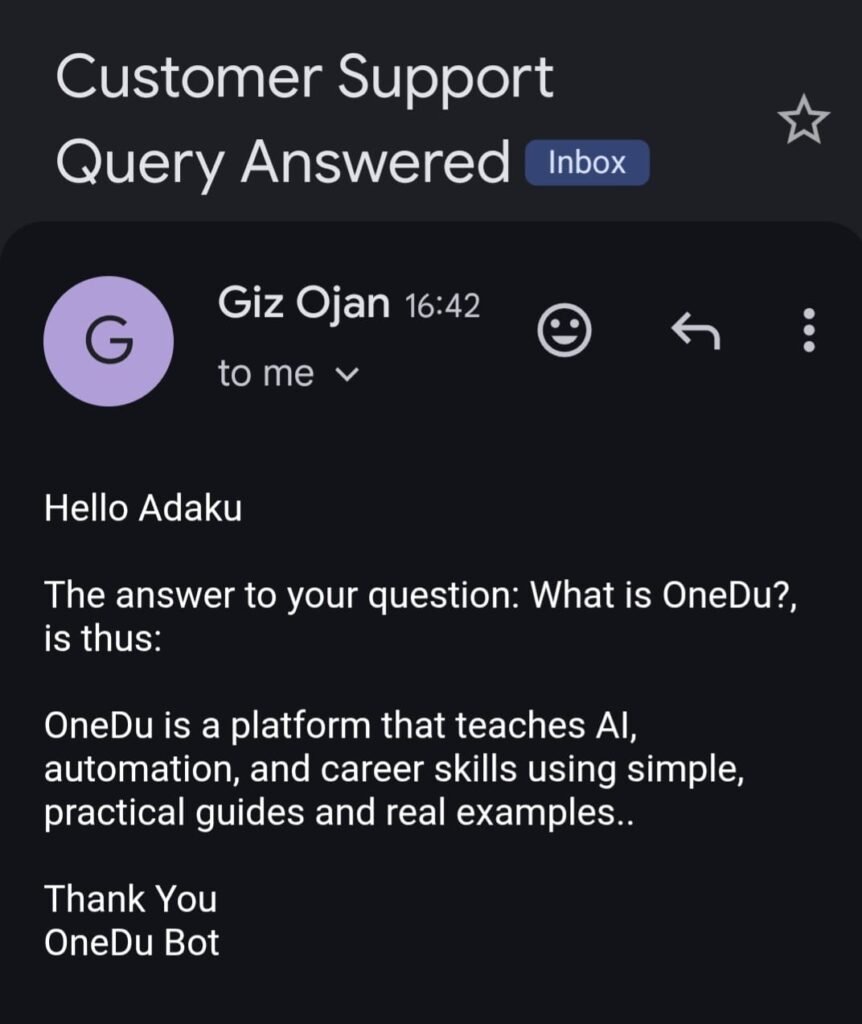
Gmail Module (Customer Reply)
- To:
{{Email from form}} - Subject: “Customer Support Query Answered”
- Body: map ChatGPT output
Route 2: Escalate to Team (when answer is NOT found)
Sometimes your assistant won’t know the answer, or the question might be too specific. That’s when you need escalation.
Create filter:
Route 2 filter: ChatGPT output = “NOT_FOUND”If true → send email to support team.
Gmail Module (Team Escalation)
- To:
support@yourdomain.com - Include:
- Customer name
- Customer email
- Original question
This ensures no question goes unanswered while keeping the assistant polite and responsive.
Step 7: Test Your ASSISTANT
Testing is the most important step.
✔ Submit a sample question in your Google Form
(See the sample Google Form used in this tutorial: Ask Our Support Assistant)
Try one that exists in your FAQ.
You should see:
- ChatGPT generates an answer
- Gmail sends the answer directly to the customer
✔ Now try a question not in your FAQ
You should see:
- Route 2 activates
- Email goes to your support team
- No email goes to the customer
This confirms your routing logic is correct.

Tips for better performance:
- Keep FAQ answers short
- Avoid overloading ChatGPT with too much text
- Add “keep reply under 50 words” if you want consistency
- Make small adjustments to your prompt wording until the tone fits your brand voice.
Step 8: ADD TO WEBSITE OR SHARE WITH USERS
Once your automation works, you can make it public.
Options:
1. Embed the Google Form on your website
Add it to:
- Contact page
- Support page
- “Ask a Question” button
If you embed the form inside a modal popup, the assistant will feel closer to a real chatbot experience.
2. Use it as a pop-up
This feels more like a chatbot.
3. Share the form link on email or social media
This method is beginner-friendly and requires no chat widget setup.
Keep It Safe and Private
Even with no-code tools, security matters.
Follow these rules:
- Never ask for sensitive information
- Use OAuth in Make.com instead of saving raw passwords
- Avoid sending personal details to ChatGPT
- Enable multi-factor authentication
- Review logs for unusual activity
- Keep your FAQ safe and accurate
This ensures your assistant stays compliant and trustworthy.
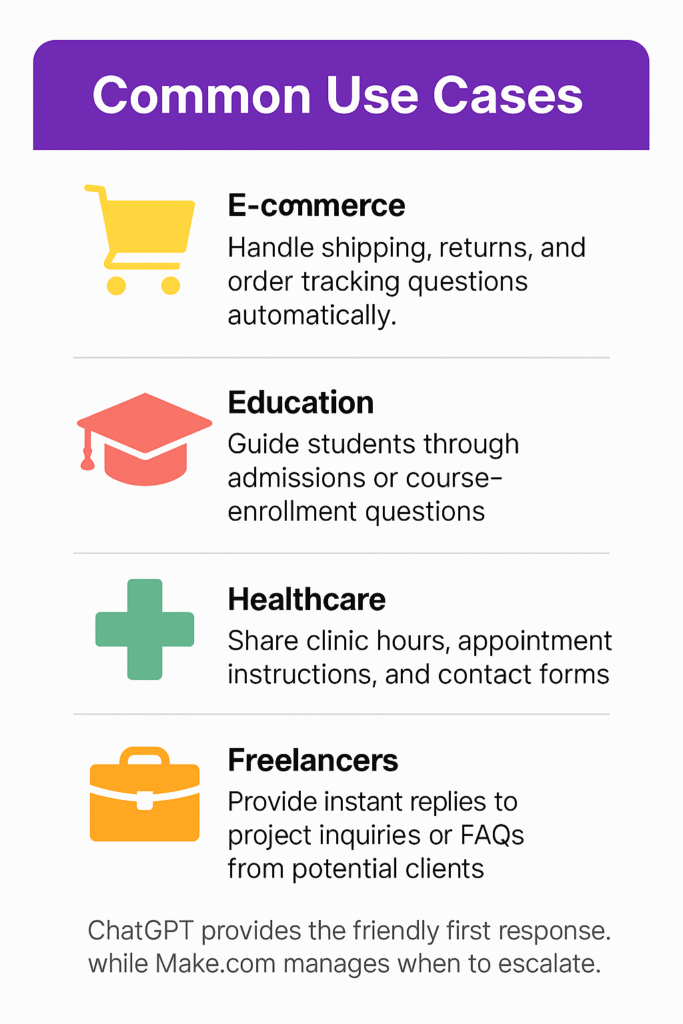
Common Use Cases
Here are a few practical ways businesses use this simple setup:
- E-commerce: Handle shipping, returns, and order tracking questions automatically.
- Education: Guide students through admissions or course-enrollment questions.
- Healthcare: Share clinic hours, appointment instructions, and contact forms (without storing patient data).
- Freelancers: Provide instant replies to project inquiries or FAQs from potential clients.
- Agencies: Automate first-line support before routing tickets to specialists.
Each example uses the same base idea: ChatGPT provides the friendly first response, while Make.com manages when to escalate.
WhatsApp Use Case
Turn the System Into a WhatsApp Support Assistant
Once your basic flow is working, you can upgrade it to WhatsApp.
Most customers prefer WhatsApp because it’s fast and familiar. While WhatsApp Business offers greeting messages and quick replies, it cannot understand customer questions or reply intelligently.
By connecting your Make.com automation to a WhatsApp Business API provider (like 360Dialog or Twilio), your assistant can:
- Receive WhatsApp messages
- Generate instant answers using ChatGPT
- Escalate difficult issues to your support email
This setup requires a separate configuration but uses the exact same logic you’ve learned in this guide.
Troubleshooting Quick Guide
| Problem | Likely Cause | Quick Fix |
|---|---|---|
| ChatGPT not replying | Missing or invalid API key | Reconnect OpenAI in Make.com |
| No email sent | Reduce triggers or upgrade the plan | Re-authenticate account |
| Reply looks messy | No formatting control | Check the “answer exists” condition |
| Escalation not working | Incorrect router filter | Gmail/Outlook is not authorized |
| Frequent errors | Free plan limits | Reduce triggers or upgrade plan |
Add a Human Touch
Even automated assistants can feel friendly.
Good examples:
- “Hi there! Let me check that for you.”
- “I couldn’t find that. Can I connect you with our team?”
Avoid robotic responses.
A simple, warm tone makes your assistant feel more personal.
Frequently Asked Questions
1. Can I make this assistant without coding?
Yes. Make.com and ChatGPT are fully visual—just drag, drop, and connect.
2. Does it work on mobile?
Yes. Google Forms and email are fully mobile-friendly.
3. How do I know when to escalate?
Use a router in Make.com to check if an answer exists. If not, forward to your support team.
4. Can I use it in different languages?
Yes. Tell ChatGPT to answer in any language you prefer.
5. Can I turn this setup into a full chatbot later?
Yes. You can upgrade it later by connecting Make.com to a real chat widget or WhatsApp Business API.
6. Does this assistant store customer data?
No. It only processes the information customers submit through your form. Make.com routes the message, and ChatGPT generates a reply without saving personal details.
Conclusion
Building a no-code customer support assistant is one of the fastest ways to improve your customer experience without hiring extra staff or learning how to code. With Google Forms collecting the questions, Make.com handling automation, and ChatGPT generating friendly replies, you now have a lightweight support system that answers instantly, routes difficult queries to your team, and works 24/7.
Start with the basic flow in this guide, test it with real questions, and refine your FAQ as you go. As your confidence grows, you can extend the system into WhatsApp, website chat widgets, or full conversational assistants. Small improvements quickly turn into powerful automation that saves hours while keeping customers happy.
Call to Action
📥 Download the Support Assistant Template
Get the presentation blueprint that guides you through designing your no-code customer support assistant step-by-step..
Download Template (PPTX)
Pingback: Build A Voice AI Assistant Using ChatGPT: Step-by-Step Guide (2025)
This actually answered my drawback, thanks!