Every creator knows the struggle—having ideas but not enough time to turn them into polished content. What if one simple workflow could take your idea, generate branded visuals, write captions, create hashtags, and even auto-store and deliver everything to your email and social pages? With the Generative AI content engine, that entire process can now be automated from a single prompt.
In this practical, beginner-friendly guide, you’ll build a Generative AI Content Engine using Make.com, ChatGPT, and Tally. This automation takes a single content idea from your audience (or yourself), feeds it into ChatGPT, turns it into a complete content pack, generates an on-brand image, and routes everything to OneDrive, Gmail, and Facebook Pages—automatically.
If you’re new to automation, you can also read our practical beginner guide: How to Automate Daily Tasks Using Make.com and ChatGPT
What You’ll Learn
- How to capture content ideas using Tally
- How to generate headlines, captions, color palettes, and hashtags using ChatGPT
- How to generate custom visuals with DALL·E
- How to download AI images as binary files
- How to route final assets to OneDrive, Gmail, and Facebook Pages
- How to fully automate content creation with one click
If you enjoy practical AI workflows, check out our tutorial on building a Voice AI Assistant using Make.com and ChatGPT.
What You Need Before You Start
- A free Tally account. Create simple, highly customizable forms with Tally.
- A free Make.com account. Sign up for a free Make.com account.
- An OpenAI API key (for text + image generation): You’ll also need a ChatGPT API key, which you can get from the official OpenAI platform.
- Gmail (for email delivery)
- OneDrive account (optional but recommended)
- A Facebook Page (optional)
To automate publishing, connect your workflow to Facebook or Buffer using their official API dashboard.
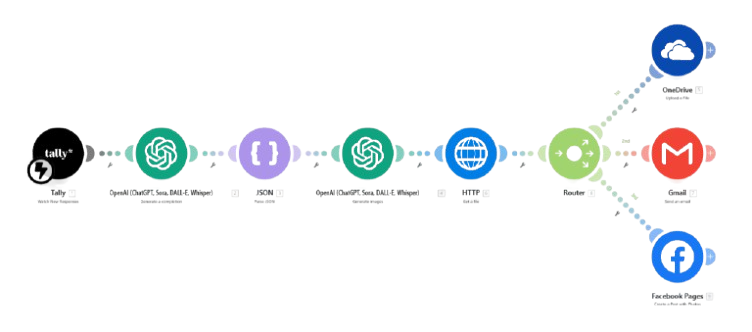
System Overview – Full Workflow Diagram
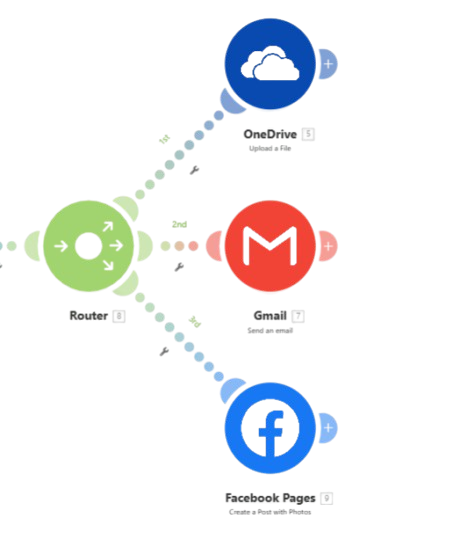
This diagram provides a visual summary of how a single content request flows through the complete AI-powered automation system. Once a user submits a request through the form, the data is processed by OpenAI for content generation and refinement. The workflow then uses an intelligent router to simultaneously distribute the finalized output to three connected destinations: Gmail for email delivery, OneDrive for file storage and documentation, and Facebook for social media publishing. This unified routing ensures that content is emailed, securely stored in OneDrive, and published automatically on the Facebook page without manual intervention—enabling fast, consistent, and efficient multi-channel content delivery.
Practical Use Cases
Practical Use Cases for Your Generative AI Content Engine
Your Generative AI Content Engine isn’t just a cool technical project—it can solve real problems for creators, freelancers, and businesses. Here are some ways you can use it in everyday work:
1. Social Media Content for Small Businesses
Local businesses (salons, restaurants, clinics, tutors, gyms) can generate ready-to-post images and captions based on simple prompts like “promo for weekend discount” or “new product launch,” without hiring a designer or social media manager.
2. Personal Branding for Professionals
Coaches, consultants, and job seekers can quickly turn ideas into polished LinkedIn-ready posts with consistent visuals, professional captions, and relevant hashtags that improve reach and engagement.
3. Content Packs for Agencies & Freelancers
Agencies and freelance social media managers can create content bundles for clients—30 posts at once—by feeding in themes like “October content for fitness client” and letting the engine handle images, captions, and tag suggestions.
4. Educational & Carousel Posts
Educators and creators can generate explanatory graphics and matching copy for Instagram carousels, Pinterest pins, or LinkedIn posts around topics like “AI basics,” “productivity tips,” or “career advice,” all from a structured prompt.
5. Promo Campaigns & Launch Announcements
When launching a new product, service, or event, the engine can generate multiple variations of posts (different angles, captions, and visuals) so you can A/B test and see what resonates best with your audience.
6. Repurposing Blog Content into Visual Snippets
You can feed a blog topic or summary into the engine and use the output to create visual snippets that promote the article on socials, driving traffic back to your website.
7. Content Creation for Non-Designers
People who are not comfortable with tools like Canva or Photoshop can still create aesthetically consistent visual content using simple text prompts and let the AI handle the heavy lifting.
Step-by-Step Guide to Building Your Generative AI Content Engine
Step 1 — Collect Content Ideas Using Tally
Your content engine starts with a simple Tally form.
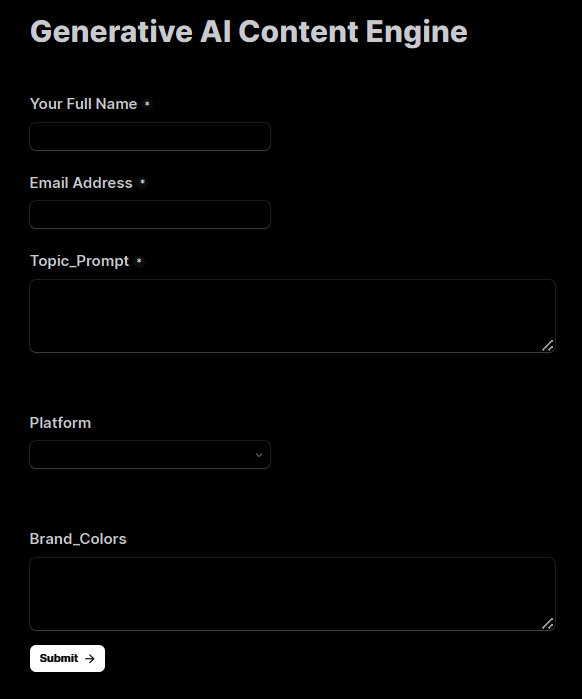
Include fields like:
- Full Name
- Email Address
- Topic Prompt
- Preferred Platform (optional)
- Brand Colors (optional)
Inside Make.com:
Add module:
✔️ Tally → Watch New Responses
This allows Make.com to pull submissions instantly.
Step 2 — Generate the Content Bundle Using ChatGPT
Next, add the module:
✔️ OpenAI → Generate a Completion
This step generates:
- Headline
- Caption
- Hashtags
- Color palette
- DALL·E image prompt
Your JSON-only prompt should look like:
Generate the following content based ONLY on the topic provided.
Return ONLY valid JSON.

CONTENT REQUIREMENTS:
1. headline – short, 3–6 words.
2. caption – social-media style (70–120 words).
3. hashtags – 10 relevant hashtags.
4. color_palette – exactly 3 HEX colors.
5. dalle_prompt – a clean, modern visual description.

Return ONLY this JSON structure:

{
  "headline": "",
  "caption": "",
  "hashtags": [],
  "color_palette": [],
  "dalle_prompt": ""
}
If you’re new to Make.com automations, read our beginner guide on How to Automate Daily Tasks Using Make.com and ChatGPT.
Step 3 — Parse the Response Using JSON Parse
Add module:
✔️ JSON → Parse JSON
In JSON String, map:
➡️ OpenAI → Result (Message Content)
Generate a structure using a sample JSON.
This creates clean fields:
headlinecaptionhashtags[]color_palette[]dalle_prompt
Step 4 — Generate the Image Using DALL·E
Add this module:
✔️ OpenAI → Generate Images
Map:
- Prompt =
dalle_prompt - Quality = Standard
- Size = 1024×1024
This produces a temporary image URL.
Learn more about OpenAI’s API features on their official documentation.
Step 5 — Convert DALL·E Image URL Into a File (Binary)
Since the DALL·E URL is temporary, you must download it immediately.
Add module:
✔️ HTTP → Get a File
Map:
- URL = DALL·E image URL field
(Example:{{4.data[].url}})
This produces:
Data→ the actual image fileContent-Type
Now your image is ready for uploading.
Step 6 — Split Your Automation Using a Router
Add:
✔️ Router
This allows you to send the content to multiple destinations:
- OneDrive
- Gmail
- Facebook Pages
Step 7 — Path 1: Upload the Image to OneDrive
Module:
✔️ OneDrive → Upload a file
Map:
- File =
HTTP → Data - File Name =
{{headline}}.png
This saves the generated image in your cloud storage.
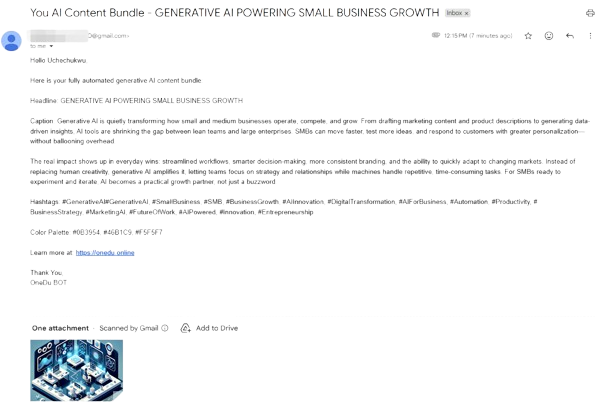
Step 8 — Path 2: Email the Full Content Pack via Gmail
Module:
✔️ Gmail → Send an email
Map:
To:
➡️ user_email
Subject:
➡️ headline
Body:
{{caption}}

Hashtags:
{{join(hashtags; " ")}}

Colors:
{{join(color_palette; ", ")}}
Attachment:
- File =
HTTP → Data - File name =
{{headline}}.png
Step 9 — Path 3: Auto-Post to Facebook Pages
Module:
✔️ Facebook Pages → Create a Photo Post
Map:
- Photo = HTTP Data
- Caption =
caption + hashtags - Page = your admin page
This publishes the post instantly.
Your Automated Content Engine Is Now Complete
With this workflow:
✔️ You capture content ideas with one form
✔️ ChatGPT creates full content bundles
✔️ DALL·E produces visuals
✔️ Make.com handles distribution
✔️ Everything is delivered to the cloud, email, and Facebook
24/7 automation. Zero manual work.
Troubleshooting
1. JSON Parse Error
Cause: ChatGPT returned invalid JSON.
Fix:
- Add “Return ONLY valid JSON.”
- Remove explanations from the prompt.
2. HTTP Module Fails to Download Image
Cause: DALL·E URL expired.
Fix:
- Ensure HTTP runs immediately after the image module.
- Do not paste the URL manually in your browser.
3. Facebook Pages Posting Error
Cause: Permissions missing.
Fix:
- Ensure you are the Page Admin.
- Reconnect the Facebook module in Make.com.
4. OneDrive Upload Fails
Cause: File name missing.
Fix:
- Always map a file name, e.g.
{{headline}}.png.
CONCLUSION
You have now successfully built a complete Generative AI Content Engine that turns a single idea into a ready-to-publish content package, including images, captions, hashtags, and secure cloud storage. By connecting Make.com, Tally, OpenAI, and your social media platforms, you have created a reliable automation system that simplifies content creation and distribution from start to finish.
This workflow significantly reduces manual effort, improves content consistency, and speeds up your publishing process across multiple platforms. It also allows you to maintain better organization, track performance, and scale your digital content strategy with ease. Most importantly, it frees up your time to focus on content quality, audience engagement, and long-term growth.
With this AI-powered automation in place, you now have a scalable, efficient, and sustainable content creation system that supports continuous online visibility and business growth.
FREQUENTLY ASKED QUESTIONS
1. What is a Generative AI Content Engine?
It’s an automated system that uses AI to create images, captions, hashtags, and design themes from a single text prompt.
2. Can I customize the style of the images?
Yes. You can modify the DALL-E prompt and brand color settings to match your niche.
3. How much does it cost to run?
The workflow is lightweight and typically costs a few cents per run, depending on image size and model usage.
4. Can this engine generate content for multiple platforms?
Yes. You can adapt the caption length and hashtags for Instagram, LinkedIn, Facebook, or Pinterest.
5. Where are the generated images stored?
They are saved in your Google Drive folder for easy access.
6. Can I automate publishing to social media?
Yes. Connect Buffer or other scheduling tools to auto-post content.