
Every day, we repeat small tasks such as collecting data, sending emails, and summarizing notes that can easily be automated. In this tutorial, you’ll learn how to automate daily tasks with Make and ChatGPT, thereby creating a real workflow that saves time and reduces errors.
Most people think automation is for programmers or large businesses, but they are wrong. With platforms like Make.com and ChatGPT, anyone can design smart workflows that connect apps, move data, and even think for you. Whether you’re running a small business, managing clients, or just trying to stay productive, this tutorial will show you how to use Make.com and ChatGPT to build an intelligent workflow automation that summarizes client feedback and automatically delivers it straight to your inbox.
If you are beginning, you can read about PenteScope’s workflow automation to get more ideas on the impact on their business process.. You read more about
By the end of this tutorial, you’ll understand how to set up workflow automation and also how to extend it to other use cases like generating meeting summaries, compiling reports, or even managing blog content workflows.
What You’ll Learn
In this tutorial, you’ll learn:
- The basics of Make.com automation: how to connect apps visually without writing code.
- How ChatGPT adds AI intelligence: using natural-language prompts to summarize, interpret, and enhance your data.
- A practical example: building a workflow that automates daily tasks with Make.com and ChatGPT, like collecting feedback, generating summaries, and emailing results automatically.
This material is designed for beginners, so don’t worry if you’ve never done any automation before. Here, you’ll get a step-by-step guide with screenshots, key concepts, and troubleshooting tips to help you build your first automation confidently.
What You Need Before You Start
Before moving on, you need to register/sign up for the following tools and accounts:
- Free Make.com account:
Sign up at make.com and get access to visual workflows (called “scenarios”) that connect apps like Tally Forms, Gmail, and ChatGPT. - Access to ChatGPT API or ChatGPT Plus:
You can use ChatGPT Plus for testing or OpenAI’s API key for live scenarios. The API key allows Make.com to send data to ChatGPT and receive AI-generated summaries. - Gmail or Outlook account:
This is where the automated email summaries will be sent from. Make.com integrates seamlessly with these services through secure authentication. - Tally Form:
You’ll use this as your input form to collect data, such as client feedback, user responses, or daily reports.
Once these are ready, you’re set to begin building your first end-to-end automation.
All the tools used in this tutorial can be accessed on our AI Tools & Resources page.
Step 1 – Plan Your Daily Task
Identify a Routine to Automate
Start by looking at your daily or weekly activities. Which tasks are repetitive, predictable, and rule-based? These are ideal candidates for automation.
For this tutorial, we’ll focus on client feedback automation. Imagine you collect customer feedback using a Tally Form every day. Normally, you’d open each response manually, summarize the comments, and send a follow-up report to your team. This process is repetitive, time-consuming, and prone to human error; therefore, the tasks can benefit from automation.
By using the make.com scenario and ChatGPT, we can develop a smart system that automatically summarizes the client’s feedback.
Define Your Automation Goal
Now, let’s define what success looks like. In this workflow, the goal is:
“Each form submission is summarized by ChatGPT and emailed automatically to my inbox.”
This clear objective will guide the setup in Make.com and help you evaluate whether your automation is working correctly later.
Step 2 – Set Up Your Workflow in Make.com
Now it’s time to build your first Make.com scenario. If you’re new to Make.com, you can find helpful details in the Make.com official documentation, which explains triggers, modules, and routers work behind the scenes.
Create a New Scenario
Log in to your Make.com dashboard and click ‘Create scenario’ at the top right corner of the dashboard.
Choose Tally as your trigger app and select the module “Watch New Responses”. After that, create a connection.
This module monitors your form for new submissions and triggers the automation whenever a user completes it.
Once connected, Make.com will automatically detect your form fields (e.g., “Name,” “Email,” “Where did you hear about us?”, etc.).
If you’d like to customize your form or explore more features, the official Tally Forms Help Center provides clear documentation for beginners.
Add ChatGPT Module
Now let’s add intelligence to your workflow. You can learn more about OpenAI ChatGPT in the official OpenAI API documentation, which explains in more detail how AI processes and generates responses.
In Make.com, click the ‘+’ icon and search for the OpenAI module. Choose ‘Generate text’ or ‘Generate a Completion’ depending on your setup.
In the OpenAI module, write a prompt in the text content that summarizes the client’s feedback, highlighting key concerns and praises.
Make.com will send this text to ChatGPT through the API, and ChatGPT will respond with a clean summary.
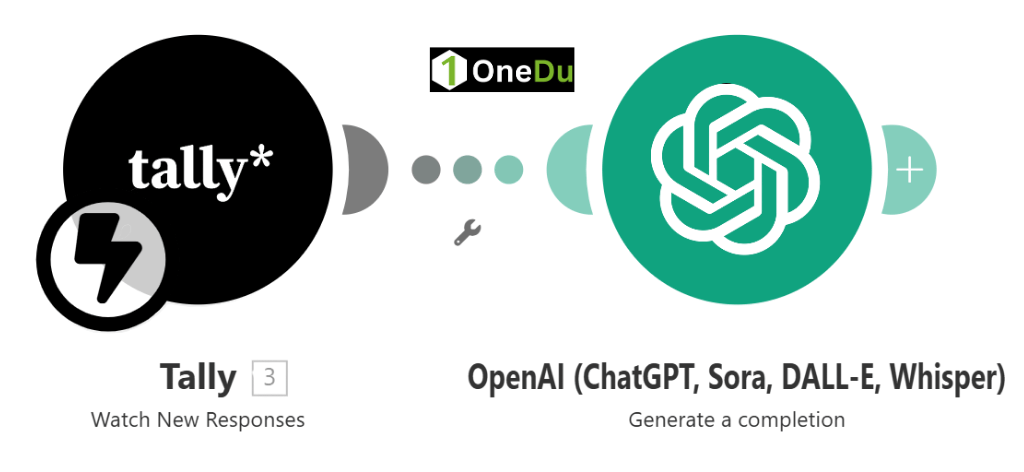
This step is where your workflow truly becomes “smart.” ChatGPT automatically interprets and transforms raw data into readable summaries or insights.
Add Email Module
Next, add your Email module (either Gmail or Outlook).
- To: Enter your own email address or your team’s group address.
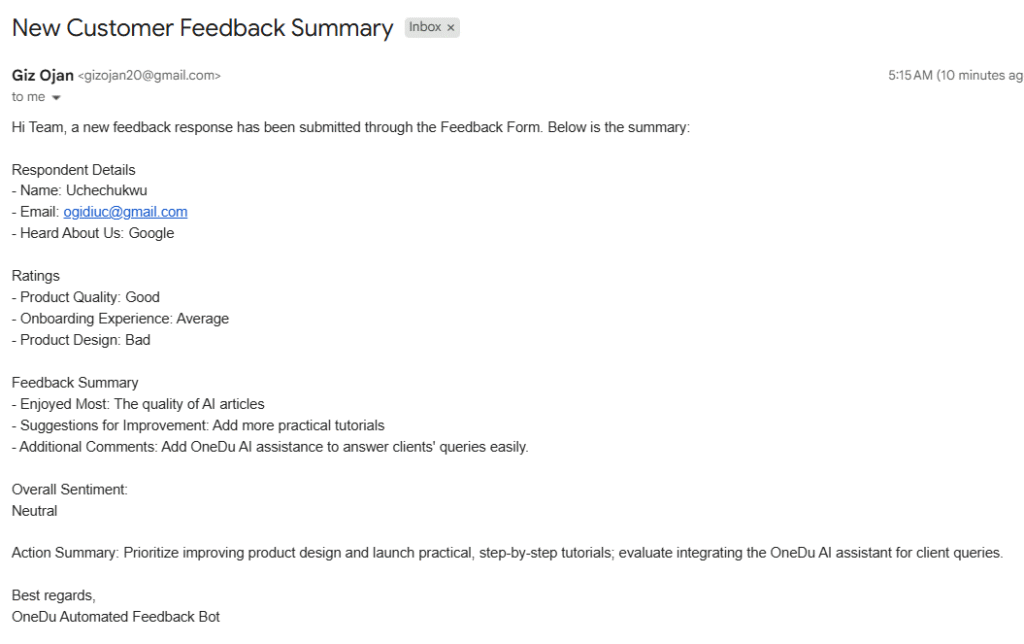
- Subject: “New Customer Feedback Summary”
- Body: Use ChatGPT’s output as the main message.
You can even personalize the subject or body to match your brand tone.
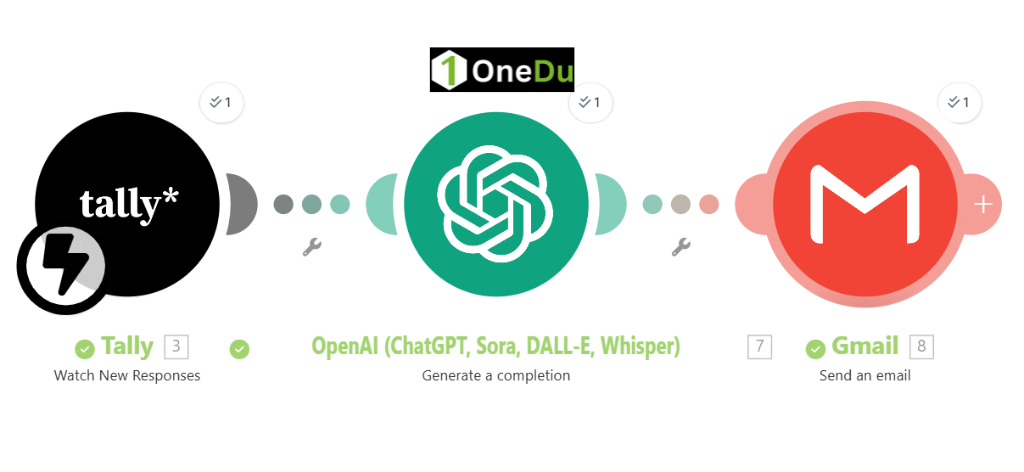
Once this is set up, Make.com will now:
- Detect new feedback automatically.
- Send it to ChatGPT for summarization.
- Deliver the AI summary to your email inbox.
Step 3 – Test and Refine
Testing ensures your workflow behaves as expected.
- Submit a Sample Form:
Fill out your Tally Form with test feedback to trigger the automation. This is the link to the form I created: tally.so/r/dWqkJq - Run the Scenario in Make.com:
Click “Run Once” to manually execute the workflow. Watch as each module activates—Tally Form (input) → ChatGPT (summary) → Email (output). - Review the Results:
Check your email inbox. You should see the summarized response. If the formatting looks off, refine your ChatGPT prompt.
Sample Test Run/Results
Step 4 – Automate Fully and Schedule
Automation is only powerful when it runs without manual input. Let’s make it fully automatic.
- Turn on scheduling: In Make.com, toggle your scenario to “ON.” Then set it to run daily, hourly, or immediately upon new data submission.
- Enable notifications: Under scenario settings, turn on error notifications. This ensures you’re alerted if something fails (e.g., email authorization expires).
- Save and document: Save your scenario blueprint for reference and versioning.
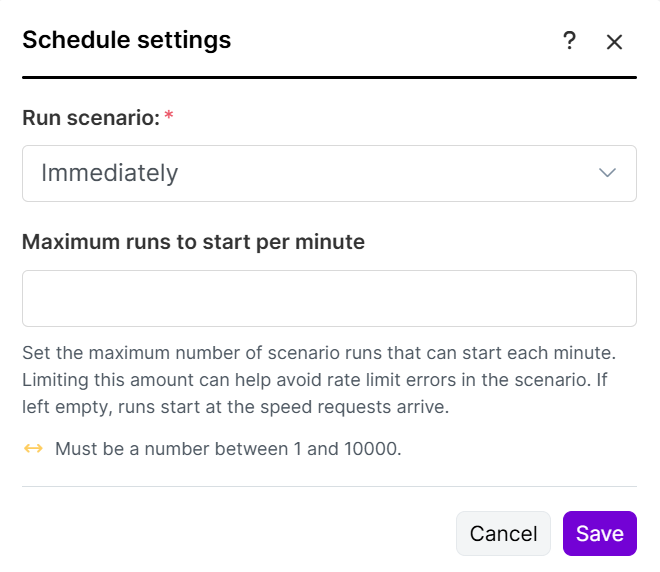
Now, your workflow runs autonomously. Each new client feedback submission triggers ChatGPT to summarize and email it instantly—no human involvement required.
Real-World Use Cases
The workflow you just built can evolve into countless use cases beyond feedback automation. Here are some practical examples to inspire your next project:
- Daily Meeting Note Summaries
Record meeting notes in a form or document, then automate summaries for distribution every evening. - Blog or Newsletter Content Generation
Use ChatGPT within Make.com to draft article summaries, headlines, or topic suggestions. - Customer Feedback Aggregation
Consolidate reviews from Tally Form, Google Forms, Typeform, or even CRM exports, and have ChatGPT highlight trends or recurring concerns. - Task-Status Reporting via Email
Gather project updates from teammates using forms and have ChatGPT compile a unified summary report.
Each of these workflows follows the same principle: connect, interpret, and deliver—the essence of automating daily tasks with Make.com and ChatGPT.
Troubleshooting Common Issues
| Problem | Likely Cause | Quick Fix |
| ChatGPT error message | Invalid API key or incorrect prompt formatting | Re-enter your OpenAI API key and test a shorter prompt |
| Emails not sending | Disconnected Gmail/Outlook connection | Re-authorize your email account in Make.com |
| Scenario stops mid-way | Exceeded operation limit or misconfigured module | Upgrade your plan or add a delay module to space executions |
Tip: Always review your execution logs in Make.com. They show where an error occurred and make debugging easy.
Frequently asked questions
Q1. Can I use Make.com without coding knowledge?
Yes. Make.com uses a visual drag-and-drop interface that connects apps without requiring any programming skills. It’s designed for non-developers who want to automate daily tasks easily.
Q2. How does ChatGPT fit into Make.com automation?
ChatGPT acts as the “thinking engine” in your workflow. It processes text inputs, generates insights, writes summaries, and even drafts responses—all automatically.
Q3. Is it free to automate daily tasks with Make.com and ChatGPT?
Both tools have free plans. Make.com offers limited monthly operations, while ChatGPT API charges per token used. For light automation, free tiers usually suffice.
Q4. Can I automatically send files or attachments?
Yes. You can extend your scenario by adding Google Drive, Dropbox, or OneDrive modules to attach documents or reports generated by ChatGPT.
Q5. How do I keep my automation secure?
Always use OAuth authentication in Make.com. Avoid placing personal or sensitive data directly into prompts and enable two-factor authentication (2FA) for all connected accounts.
Conclusion
Automating routine work no longer requires programming skills. With Make.com handling integrations and ChatGPT adding intelligence, you can automate daily tasks that once consumed hours—saving time, improving consistency, and boosting productivity.
Start with this simple scenario, review your Make.com blueprint screenshots, and keep refining. As you master the basics, you’ll discover endless ways to extend automation into reports, marketing, research, and even learning workflows.
Each automation you build is a step toward smarter, more efficient workdays—where tools think for you, not the other way around.
Pingback: No-Code Customer Support Assistant With Make.com (Full Step-by-Step Guide)
Pingback: Build A Voice AI Assistant Using ChatGPT: Step-by-Step Guide (2025)
Pingback: How To Build An Effective Generative AI Content Engine With Make.com (7 Steps)